
 MSNswitch MAX



MSNswitch MAX
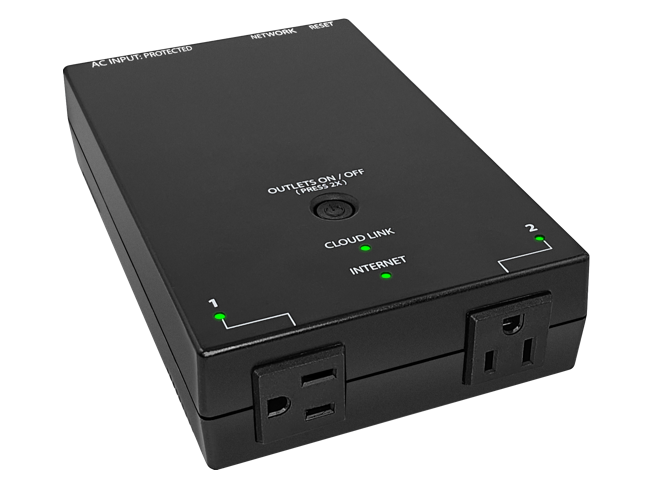
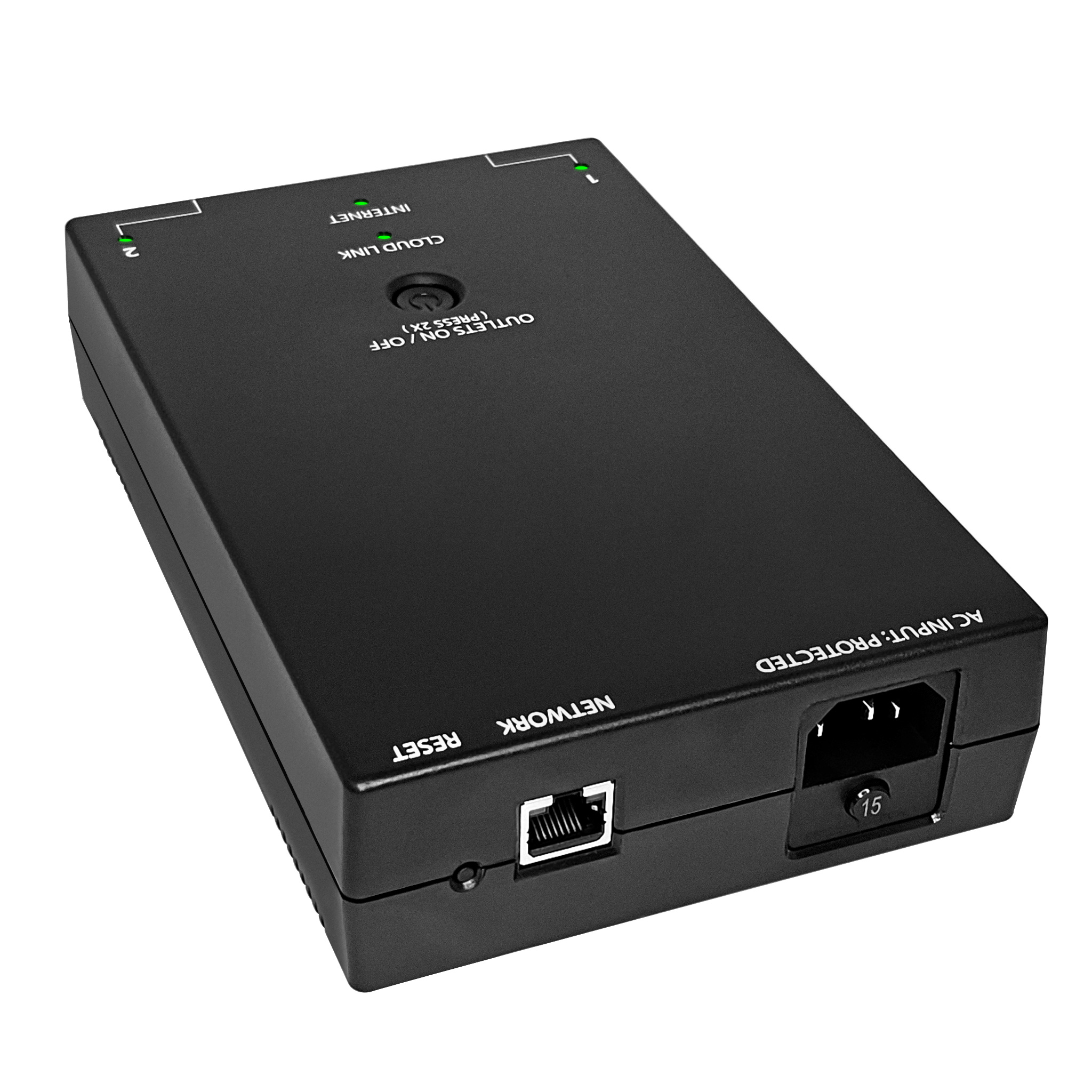
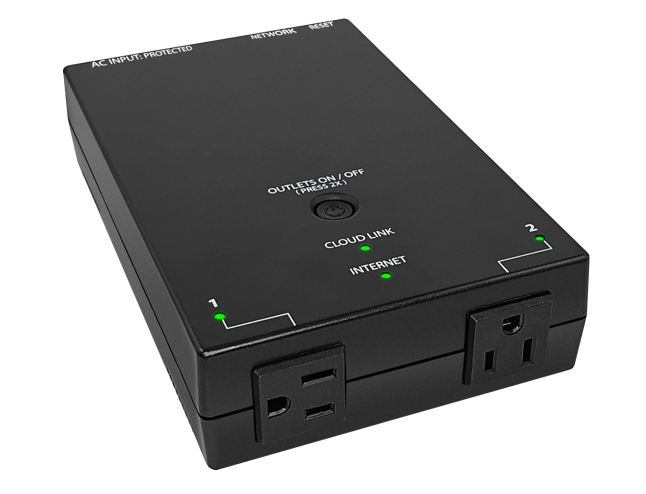
The MSNswitch MAX features two individually controllable outlets encased in a fire-resistant plastic housing. Designed for autonomous operation, it can resolve network issues without outside intervention.
MSNswitch MAX
with Wi-Fi, Metering, Surge Protection & Noise Filtration
Harness Wireless Convenience
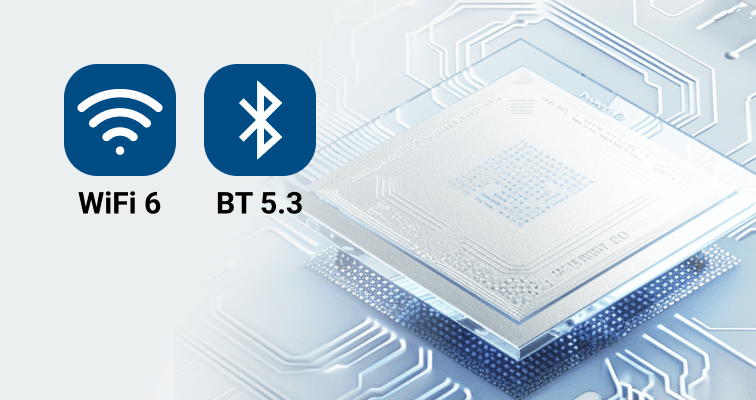
This UIS-801 device comes equipped with the cutting-edge technology, including WiFi 6 and BT 5.3, providing users with the flexibility required for installations in hard-to-reach areas. This ensures robust connectivity even in challenging environments.

Monitor Energy Usage
One of the features of this device is its built-in power metering capabilities. Users can monitor the power consumption of connected device over time, allowing them to keep track of energy usage and make informed decisions.
Safety and Performance
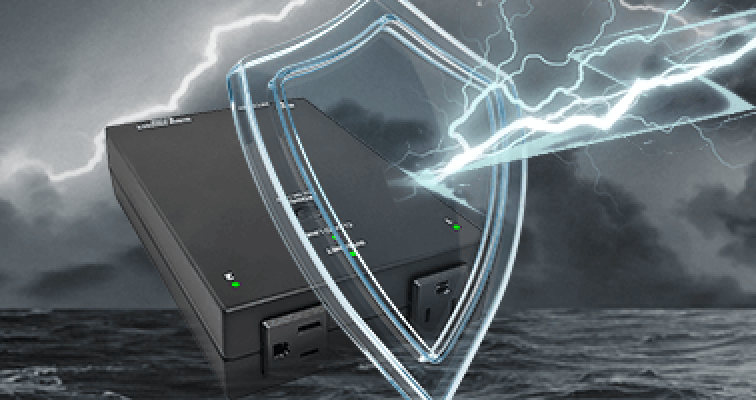
The device is designed with surge protection and noise filters, ensuring the safety and reliability of connected devices. Surge protection guards against voltage spikes, while noise filters enhance the quality of the electrical signal.
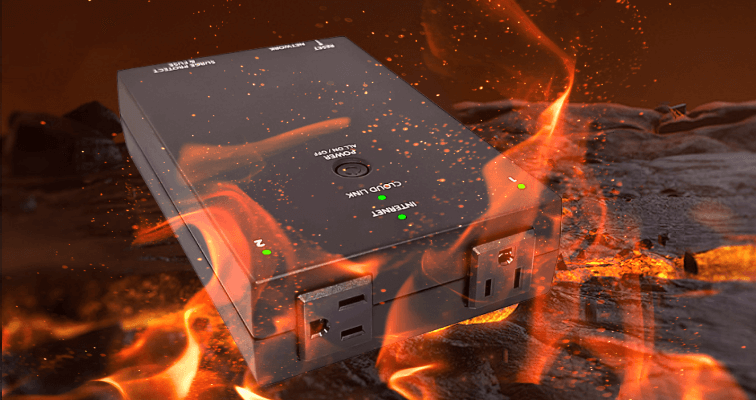
5VA Fire Resistance
Further enhancing its robustness, the UIS-801 casing is forged from 5VA fire-resistant polycarbonate material, the highest standard, ensuring superior safety in critical installations.
Sensible Outlet Design
The two outlets are thoughtfully designed at 90-degree to each other and are appropriately spaced apart. This design offers great flexibility for connecting various types and sizes of power adapters, ensuring that user can easily accommodate their specific power needs.
Cloud4UIS Management Platform
Manage and control MSNswitch MAX through Cloud4UIS.com or the ezDevice app.
- Install ezDevice APP and scan to locate device.
- Device connects to nearest Wi-Fi AP or is connected via Ethernet cable to router.
- Device auto pairs with user's Cloud4UIS account.
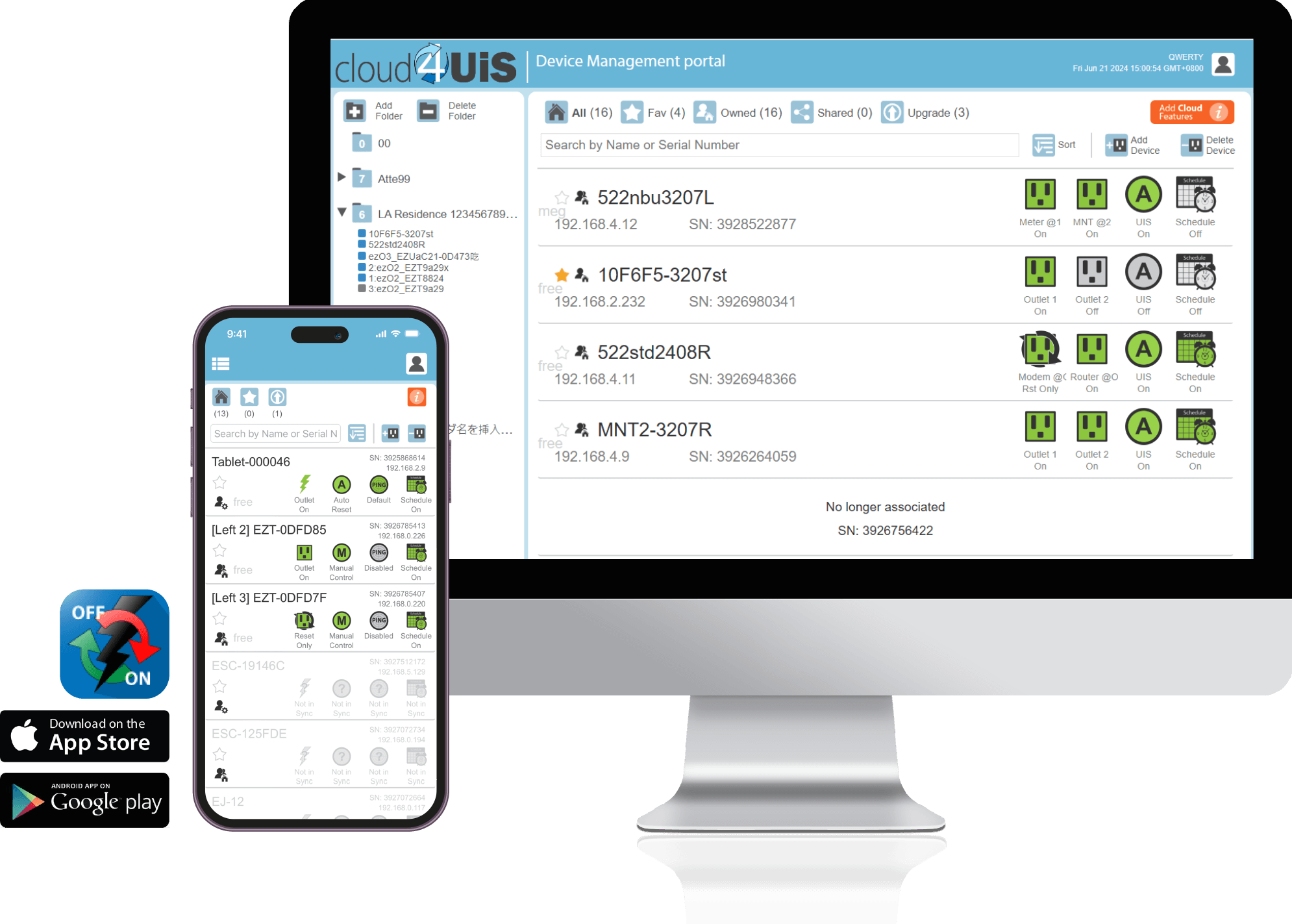
- Remotely Access and control devices
- Manage and monitor devices on a single platform
- Share device with other cloud users
- Assign access permission to shared user
- Designate Favorite to make unit easily available
- Stay updated with latest OTA firmware upgrades
- 15A Resettable Circuit Breaker
- Support Wi-Fi 6 (802.11b/g/n/ax) 2.4GHz & Bluetooth 5.3GHz
- Individual Outlet Power Metering
- Surge Protection (MOV GDT) in UL94 5VA rated fire resistant case.
- EFT Protection
- EMI/RF Filtration
- UIS Auto Reset (Internet Self-Healing)
- Built in GUI, RESTful API & Instant Messaging (Skype)
- Free Cloud & APP for remote management
- Upgradeable to a business platform for large-scale device and user management.
Ver.:5c15
| Product Name | MSNswitch MAX(with Wi-Fi, Metering, Surge & EFT Protection) |
| Model No. | UIS-801BC (Made in China) UIS-801BT (Made in Taiwan) |
| Image (Front, Back) | 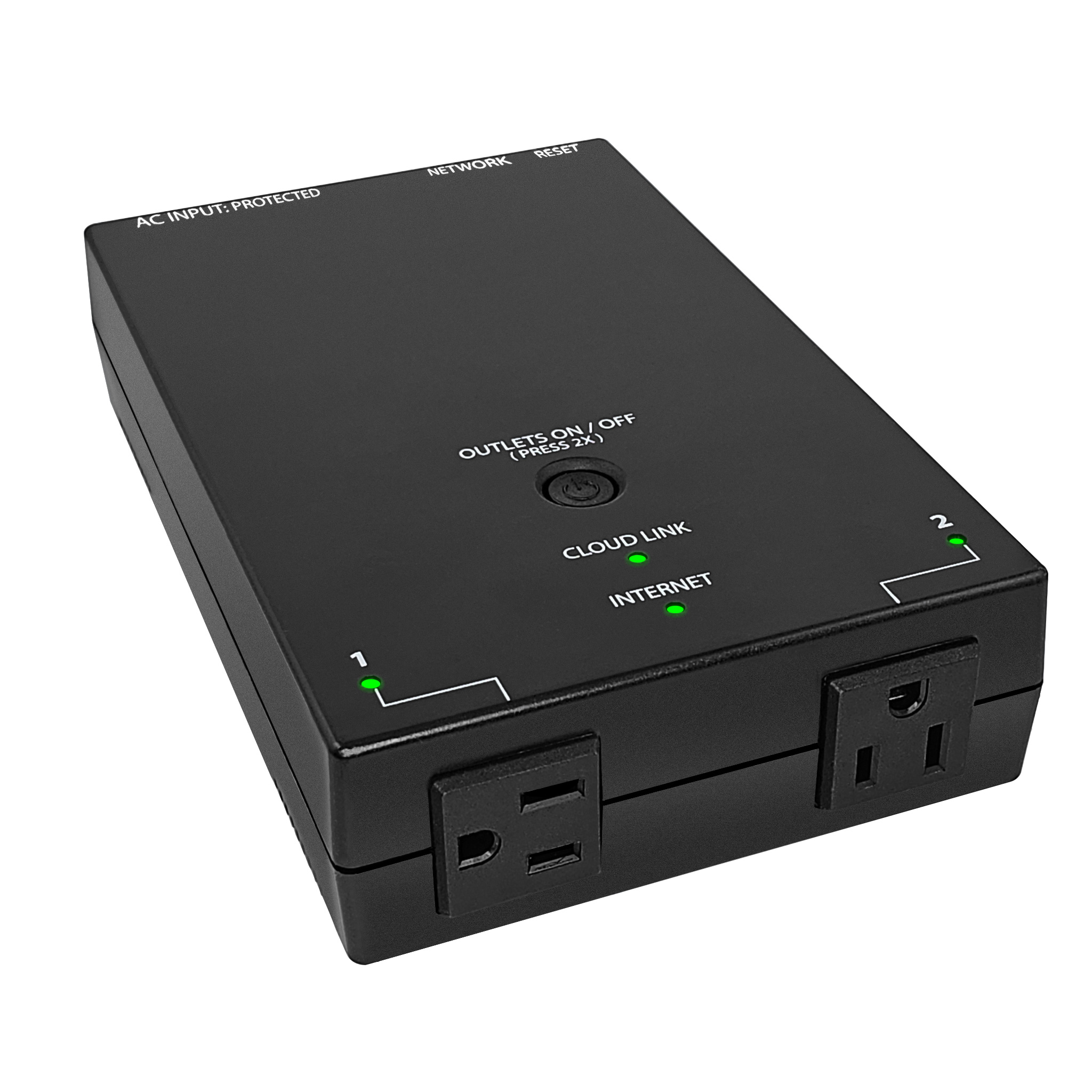 Front 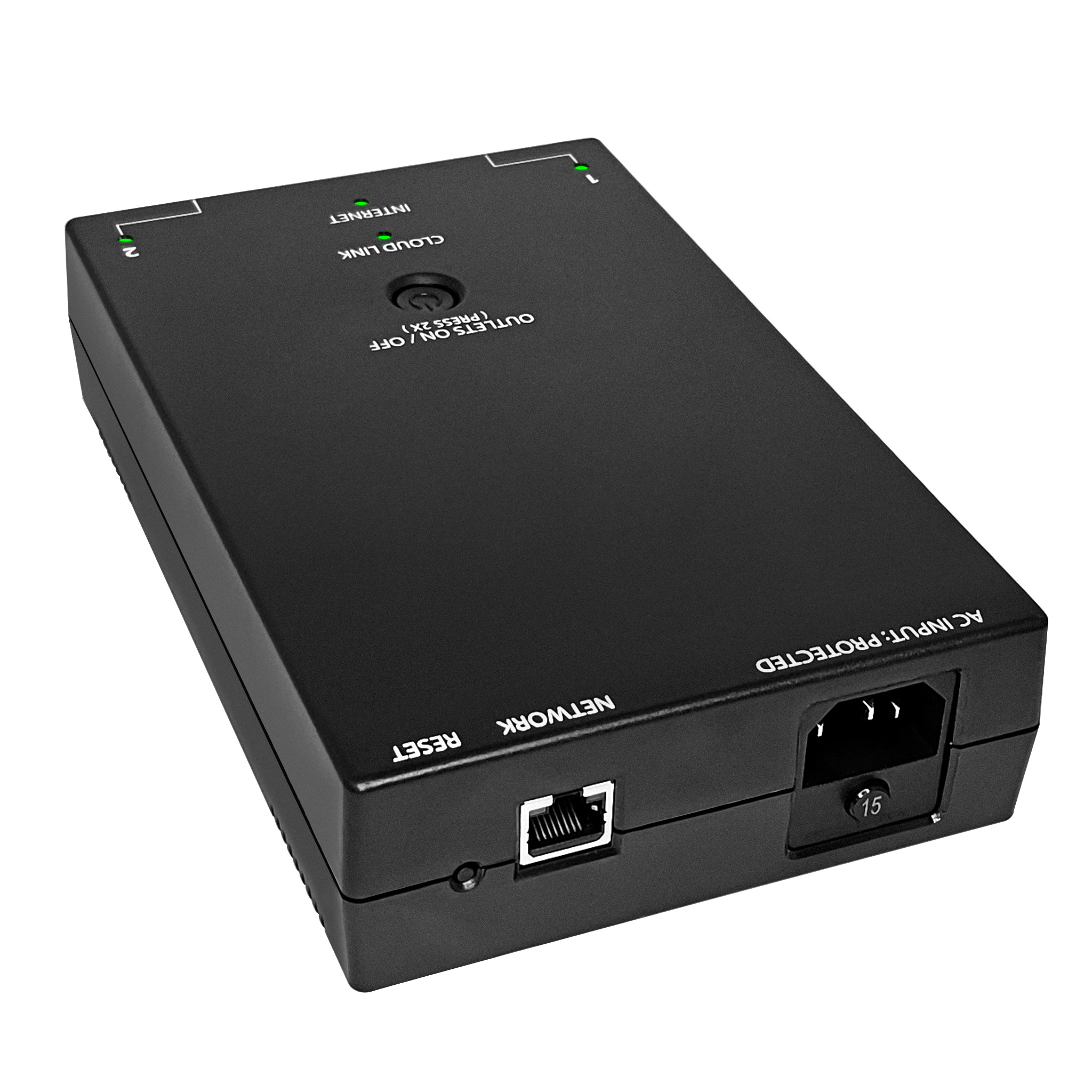 Back |
| Image (Top, Bottom) | 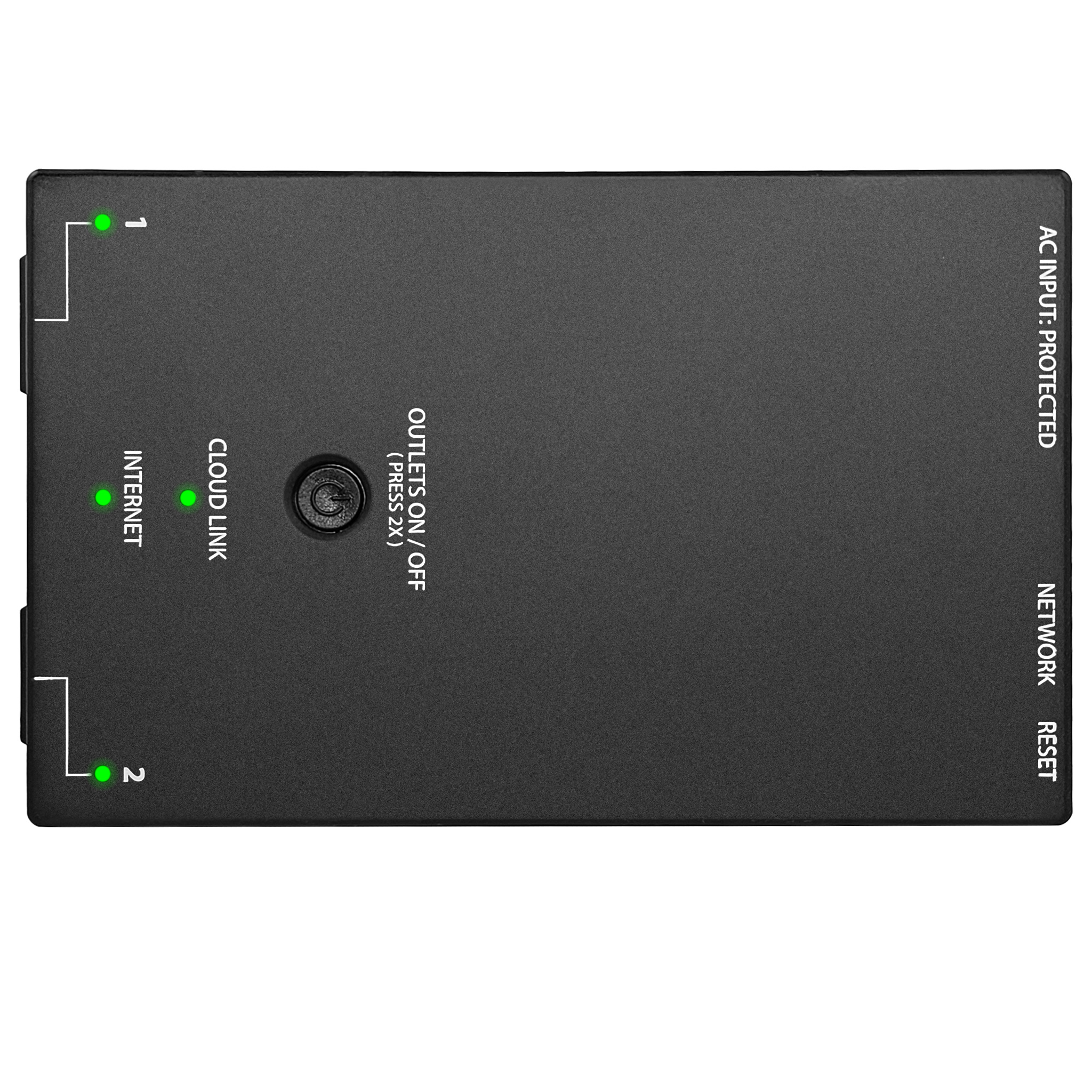 Top 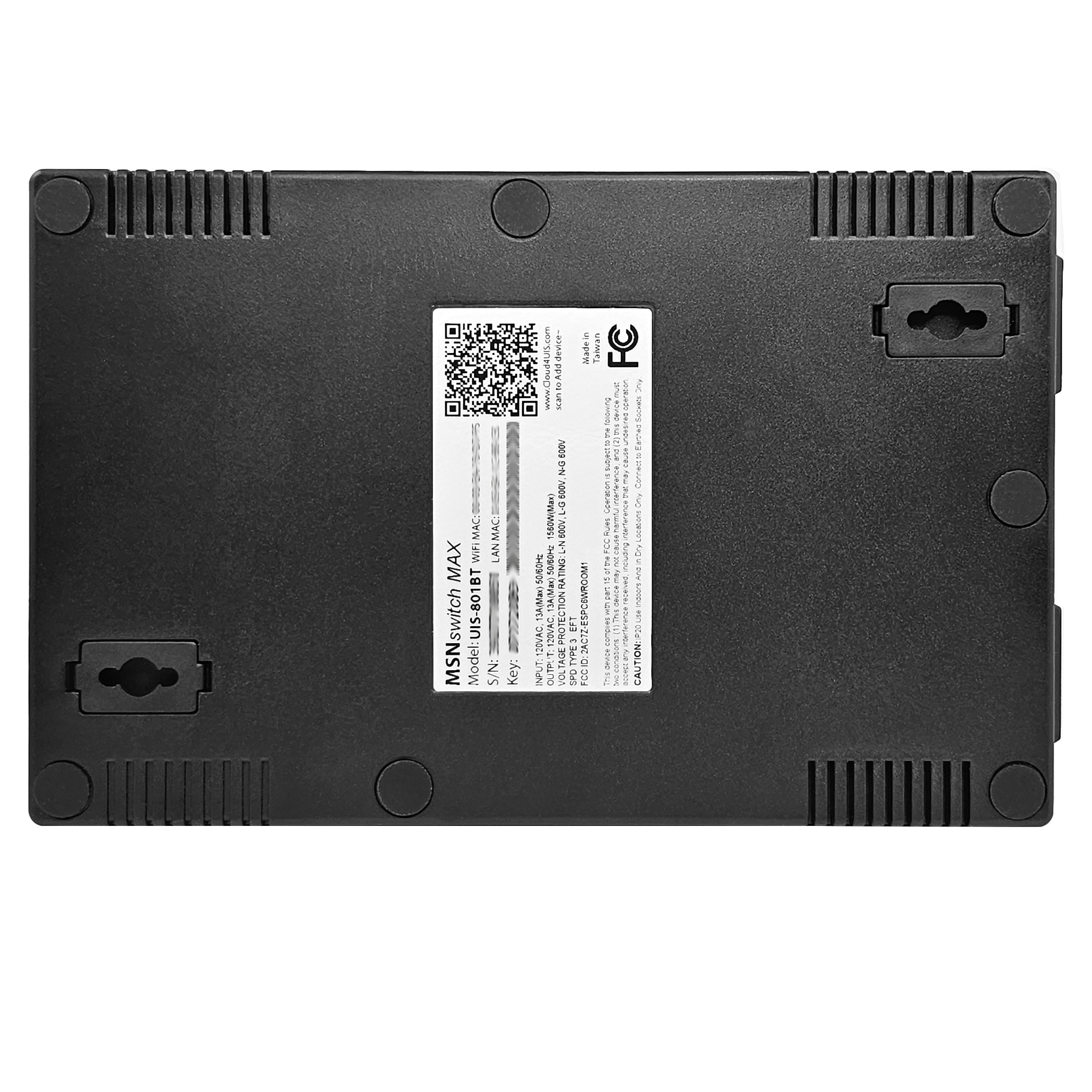 Bottom |
| Brief Description | MSNswitch MAX is designed to automatically check if the network connection is normal. Should network connection be unstable / unreachable, it will automatically cycle power output. This ensures remote network (eg. router/modem) is healthy and connected. Features at a Glance:
|
| Package Contents |
1) Device 2) Quick Setup QR Card 3) IEC Power cable 4) LAN cable<br>5) Wall Mounting Template |
| Description (Top, Sides) | 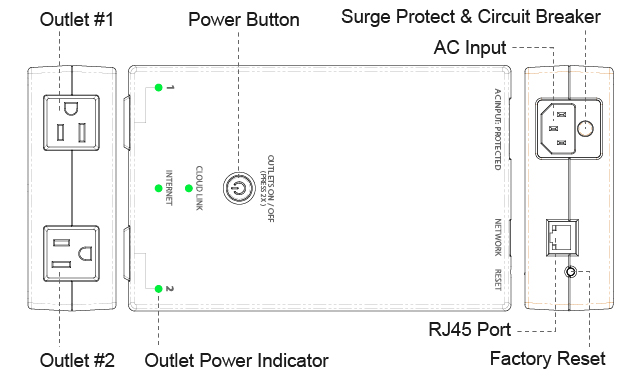 |
| Description (Bottom) | 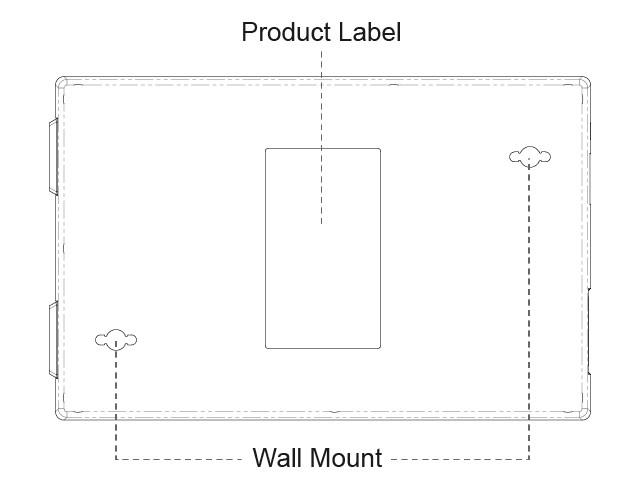 |
| Dimensions Diagram | 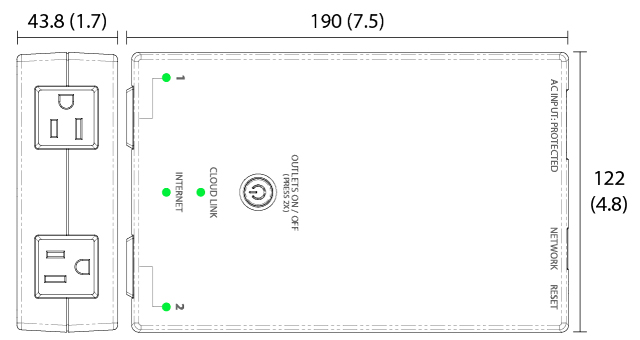 |
| Dimensions, mm (inch) | 190 x 122 x 43.8 mm (7.5 x 4.8 x 1.7 inches) |
| Socket Type | 2x NEMA 5-15R (Type B), Individually IP Controllable. |
| Electrical Rating |
Input: 120VAC, 13A (Max continuous rating) 50/60Hz Output: 120VAC, 13A (Max combined total of two outlets) 50/60Hz Power: 1560W Safe Voltage: 100VAC ~ 125VAC |
| Breaker |
15A (Max trip current) Resettable Circuit Breaker (ANSI / UL 60320-1) |
| Power Input Connector | IEC C-14 socket |
| Power Cable | 1.5M 300V 14AWG cable with IEC C-13 and NEMA 5-15P |
| Power Button | Press 2x to toggle all outlets On or Off. |
| Factory Reset |
Hold for 10 seconds: Initiates a System Restart (Outlet power unchanged) Hold for 20 seconds: Reset to Factory Default |
| LED Indicator | 2x Outlet Power, 1x Internet, 1x Cloud Link |
| Time / Date | Built-in Real-Time Clock |
| Power Metering |
Individual Outlet Metering: • Current (±2.5% ±0.1A) • Voltage (±2.0% ±0.1V) • Power (±2.0% ±0.1W) Note: Metering values are provided for reference and informational purposes only. |
| Voltage Protection Rating | L-N 600V, L-G 600V, N-G 600V |
| Surge Protection | MOV GDT<br />AC Port: 1kV Line to Line; 2kV Line to Earth; Signal Port 1kV. |
| Electrostatic Discharge (ESD) | Air ±8KV, Contact ±4KV |
| Electrical Fast Transient (EFT) Protection | IEC 61000-4-4 Level 3 |
| EMI/RF Filtration |
Minimum Insertion Loss in dB (on 50 Ohms system): Common Mode: -16.0dB @10kHz, -35.0dB @100kHz, -56.4dB @1Mhz Differential: -16.3dB @10kHz, -36.1dB @100kHz, -56.3dB @1Mhz |
| Ethernet | RJ45, 10 / 100 Base-T |
| Wireless | Wi-Fi 6 (802.11b/g/n/ax) 2.4GHz & Bluetooth® 5 (LE) |
| Supported Protocols | RESTful API, HTTPS |
| Certification | FCC ID: 2AC7Z-ESPC6WROOM1, UL (TBA), RoHS (TBD) |
| Auto Reboot (Internet Self Healing) | Configure via APP / Cloud4UIS / Web User Interface (Patent: US8212396B2) |
| Control and Management Interface |
• ezDevice APP (Ad-Free on Android and iOS) • Cloud4UIS.com (Lifetime Free access) • Web User Interface • Device ‘Function Button’ • RESTful API |
| Device Mounting | Wall-Mountable. Template included. |
| Casing Material & Finish | Polycarbonate, PC (5VA Flame Graded), Matte Black |
| Package Options |
• Brown cardboard boxes with foam padding, or • Bulk-packed with bubble wrap |
| Operating Environment | 0°C ~ 60°C at 10% ~ 90% relative humidity. For indoor use only. |
| MODEL NO. | DOWNLOAD | ||||
|---|---|---|---|---|---|
| UIS-801 |
| PROGRAM NAME | VERSION | DATE | DOWNLOAD | FILE SIZE | NOTES |
|---|---|---|---|---|---|
| Netility for Windows | v5.2.1 | 18th Oct., 2024. | Netility for Windows V5.2.1.rar | 5.3MB | |
| Netility for MAC | v2.0 | 20th Oct., 2017. | Netility for MAC V2.0.rar | 976KB |
Notice:Firmware upgrades are undertaken at the user’s sole discretion and risk. Any damage caused by an improper upgrade procedure is not covered by manufacturer’s warranty.
Current Firmware Release Notes:
| Fixed |
|
| Fixed |
|
Firmware Upgrade Instructions: Upgrades this device Over-the-Air (OTA) via your Cloud4UIS.com account.
Upgrade Steps:
- Account Setup: Sign up for a Cloud4UIS.com account.
- Check Connectivity: Ensure your device has an active internet connection and the Cloud Link LED is blinking (else the next step will fail).
- Register Device: Log in to your account and select ‘Add Device’.
- Execute Upgrade: Once the device is added, navigate to the [Upgrade] folder and follow the on-screen prompts.
WARNING: DO NOT power-cycle or disconnect the device from the internet during the upgrade process
Support & Frequently Asked Questions
The following page is a compilation of frequently asked questions with regards to MSNswitch usage.
If you encounter a problem that is not listed in this FAQ, please email us. Be sure to include in your email:
- a) Model number
- b) Screen capture of “System Status” page
- c) Screen capture of the issue
Do you have any suggestions or “Wish List” for our product? We’d like to hear from you. Send us an email.
Use ‘APP password’.
For Gmail, please refer to: Google Support Link
eg:
E-mail Server: smtp.gmail.com
E-mail Port: 465 or 587 (either one)
Sender’s Email Address: abc@gmail.com
User Name: abc@gmail.com
Password: APP Password
For Yahoo email, please refer to: Yahoo Support Link
Goto GUI > Configuration > Heartbeat [Help] > [ Download API document ]
Login to device GUI > System Status > Cloud Status.
- Enabled (Online) = Cloud Enabled. Device linked / added to Cloud account.
- Disabled (Offline) = Cloud Disabled. Device linked / added to Cloud account.
- Enabled (Offline) = Cloud Enabled. Device linked / added but is not able to connect with server.
- Enabled ( – ) Cloud Enabled. Device has not been linked / added to a Cloud account.
- Disabled ( – ) Cloud Disabled. Device has not been linked / added to a Cloud account.
On these models, Cloud function is disabled by default.
Login to device GUI > Network > Cloud Service [Enable] > [Apply].
Proceed to ezDevice APP or Cloud4UIS to ‘Add’ device to account.
- Check router DHCP table for the device’s LAN IP.
- Browse to said LAN IP.
- Enter login credential shown on device label.